[OBIEE Issue] How to remotely connect to online RPD

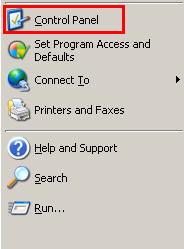
Step 1. Set up your system DSN. Go to “Start” at the left corner of your windows system and click to expand the panel. And then click “Control Panel” on the right.
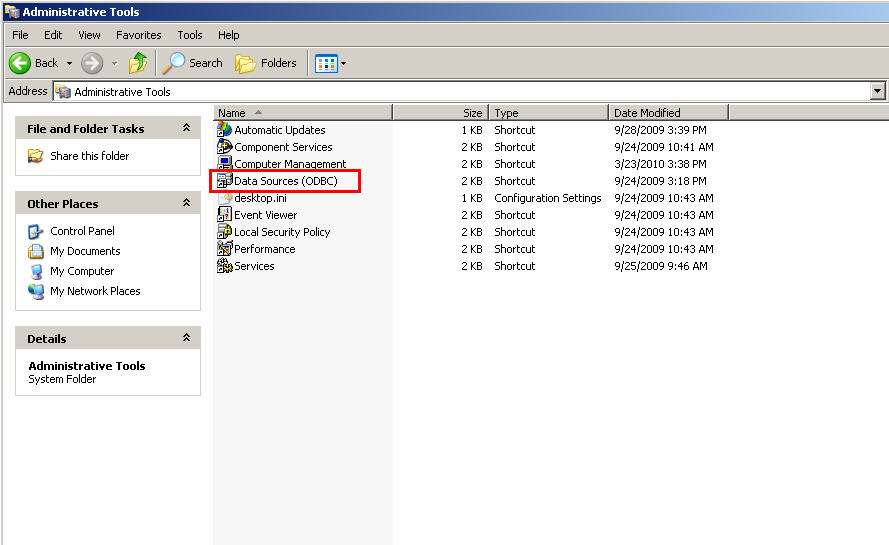
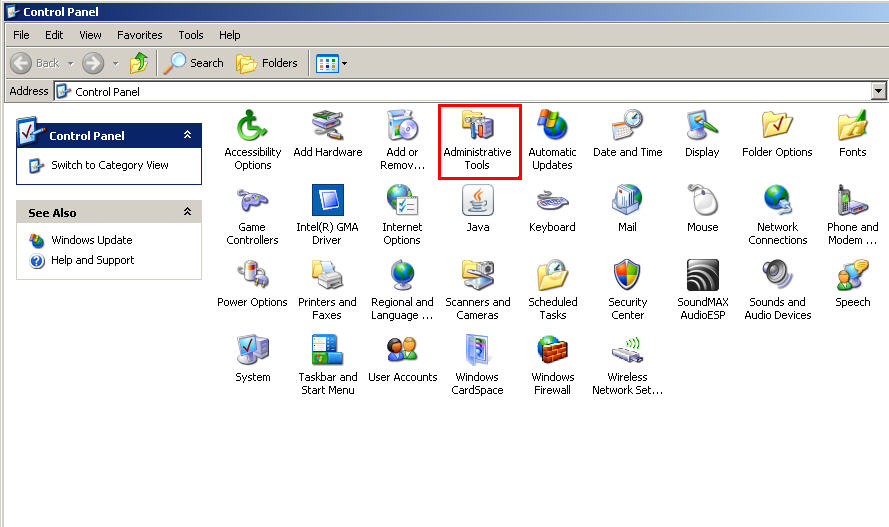
Step 2. Click “Administrative Tools“, and then click “Data Sources (ODBC)” .
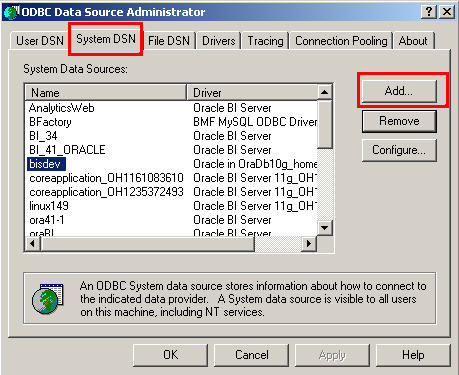
Step 3. Click “System DSN” and then click “Add” to add a new one.
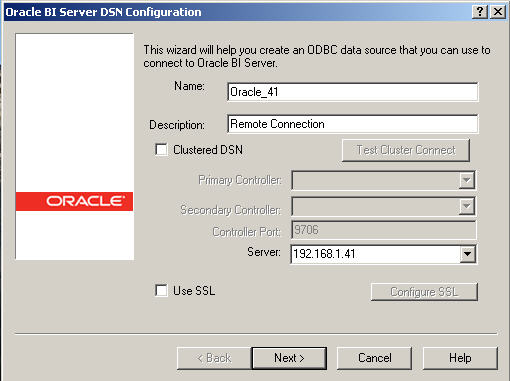
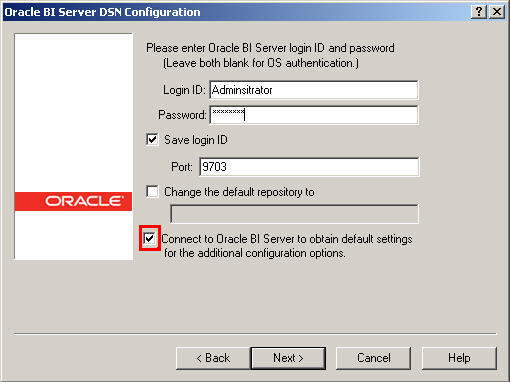
Step 4. Choose “Oracle BI Server” as the driver.Note: Once you install the 10g OBIEE package which by default would include the driver installation.Step 5. Fill in the Server name (this one would show up when you use admin tool to remotely connect to the online rpd) and IP address where your remote rpd locates on. Then click “Next“.Step 6. On this page, type the Login ID as your rpd Admin login id. By default it should be “Administrator“. And the Password should be remote rpd login password. I would check the last box marked in red to make a trial connection to the remote rpd and make sure this connection is valid. Then click “Next“.
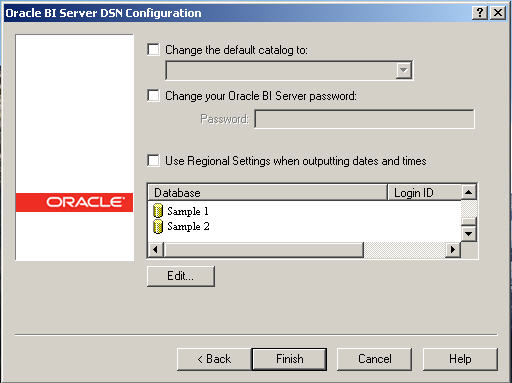
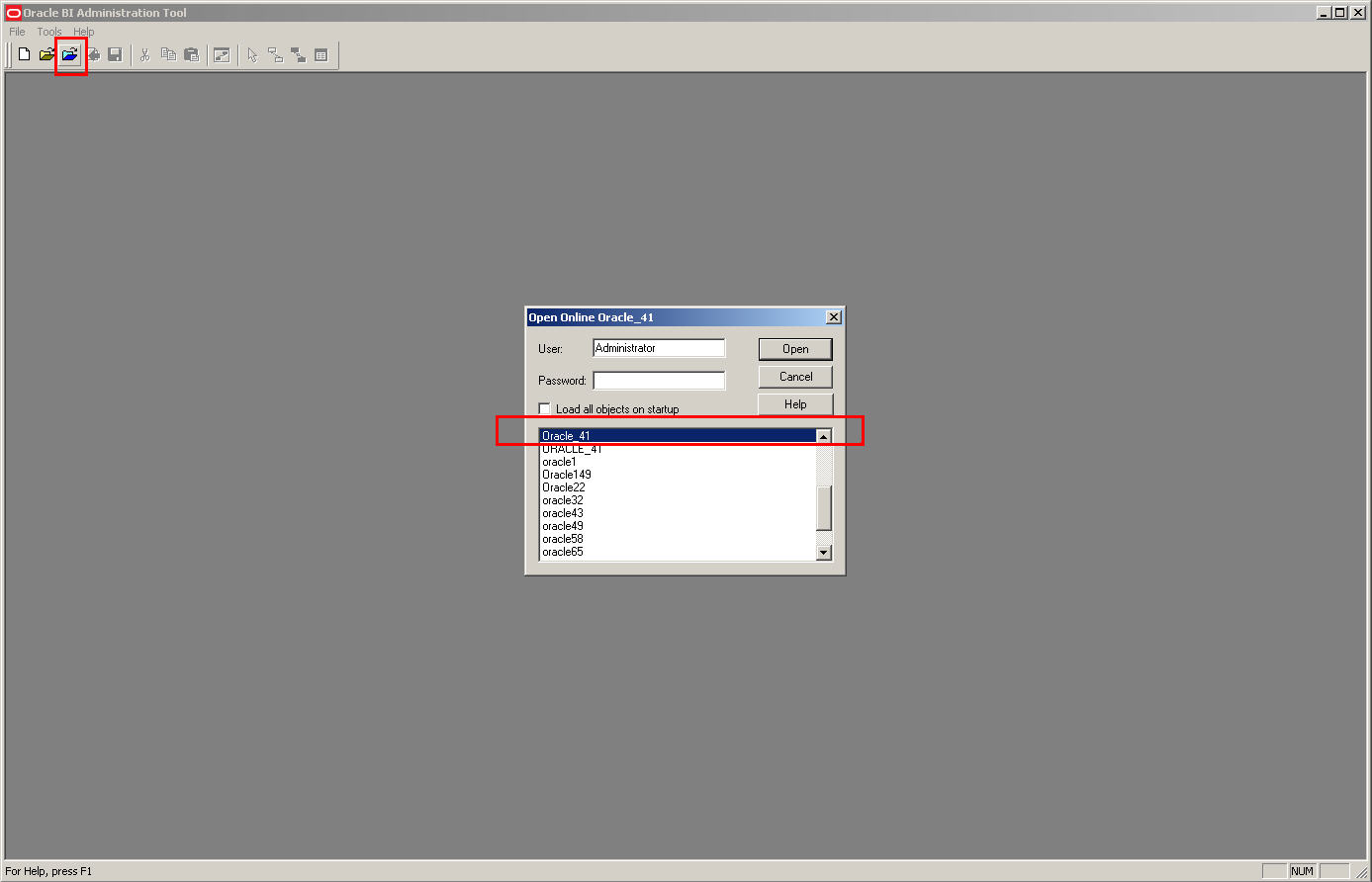
Step 7. If you could see this page  with the remote subject areas showing up , in this case (Sample 1 and Sample 2 are the two subject areas on my remote rpd). Then this DSN is valid. Then click “Finish“.Step 8. Go to your admin tool and then click the blue folder button for opening online rpd. Then on the pop-up window, it lists all the DSNs available. Choose the one you just created and type the rpd password. Then you could be able to login to your remote rpd.
[OBIEE Issue] SSO server version v3.0 is not supported

Background:

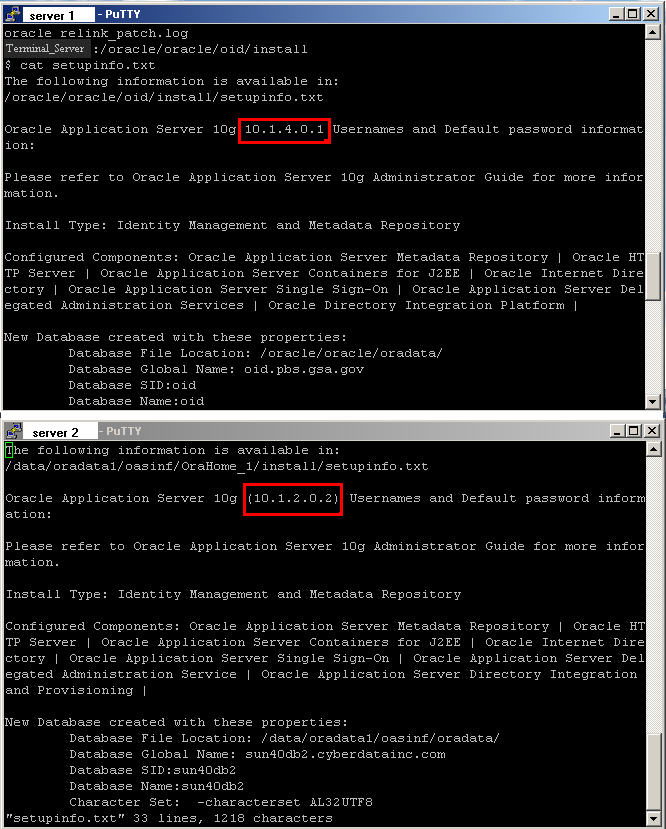
I made an upgrade on SSO Server 1  from 10.1.2.x to 10.1.4.x ,while for SSO Server 2, I kept the older version. Here is the version number comparison that you could easily found out from the setupinfo.txt under the software installation folder.

and then I tried to register the same partner application server with the same syntax I used to write on SSO Server 2 like below:

It actually gave me no complaint on the SSO Server 1.However, when I transfered the osso.conf file to my partner application server and put it under the same directory I used to. After restarting the HTTP Server, I got the following error: SSO server version v3.0 is not supported.

Solutions:

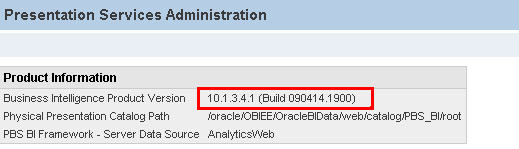
This is caused by a version mismatch in the SSO conf file I generated from my SSO Server 1. The SSO version was 10.1.4.0.1 as you could see above and I was using the generated conf file for my partner application of a version 10.1.3.4.1 like below:

.     By default, using the same syntax for registering the partner application server on Server 1 would create an osso.conf file of a version 3 which is a higher version that is not compatible with our partner server. In order to solve the problem, we have to explicitly tell the SSO Server to generate a lower version file by giving an extra parameter specifying this need. So the new syntax would look like:

After restarting the HTTP Server, it worked perfectly with the new file! Good luck!

[OBIEE Issue] XMLP Server Cache Control

1.   Login to BI Framework with the user account which has the XMLP_ADMIN privileges on BI Publisher. Click Admin Tab from this page.

2.  Click Server Configuration on Admin Page.


3.     If you have never set up the Caching for publisher, by default,it should be all blank for this section. Input the numbers for each text field as expected.

4.     Restart OPMN

Open a terminal and type the following commands.

 $cd <OAS_Home>/opmn/bin

      $./opmnctl stopall

      $./opmnctl startall


[OBIEE Issue] Roll back Selection Security to be Enable

Recently, I was asked about a question that how to roll back the Selection Security to be Enable again.

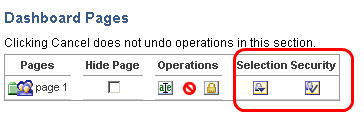
It looks like on the Dashboard Properties page, you could change the Selection Security from Enable as shown by the graph above to the two new icons below which offer more flexibility of setting up the selection permission.

 The question is how to roll it back. It seems there is no way to roll it back to Enable on the same configuration page.

Solution: 

In order to roll back the change, you need to go to the catalog  Manager and navigate to Shared -> Shared folder name (eg: BI Framework) -> _Portal

Go under _portal folder and find the dashboard folder that the change was made. You would see there is one extra folder called _selections and  one extra attribute file _selections.atr

Delete these two items and restart BI Server. You would see the Enable link is restored back!

[OBIEE Issue] Whole Cache Purging Scripts

Be sure to set your Oracle BI home in the ‘.profile’, as the base installed directory of OBIEE, on the OBIEE Server. The following script would reference it as ORACLEBI

I will create a temporary “purge-log”  folder under Oracle BI Home that would store the log information of the cache purge.

1.You need to put the following lines into a .sql file. I call it purgecache.sql and put this file under purge-log folder temporarily.

// The below script should be run at the terminal to purge the OBIEE Cache.
// The following command should run from $ORACLEBI/server/Bin64
// nqcmd -d AnalyticsWeb64 -u Administrator -p -s /purge-log/purgebicache.sql
Call SAPurgeAllCache()

2.The script for purging all BI Server cache is shown below and I name it as cachepurge.sh.

# Custom Script for Purging OBIEE Server Cache
# Usage ./cachepurge.sh <OBI_Administrator_Password>
# Oracle BI Home is the Root Directory where OBIEE is installed
# and this parameter should be set in the profile
c1=`pwd`
echo OracleBI Home Directory is $ORACLEBI
cd $ORACLEBI/setup
echo current directory is `pwd`
. common.sh
. sa-init64.sh
echo SAROOTDIR is $SAROOTDIR
#echo 2
cd $ORACLEBI/server/Bin64
echo current directory is `pwd`
# script to run nqcmd
date >> $SAROOTDIR/purge-log/cacheoutput.log
echo ——– >> $SAROOTDIR/purge-log/cacheoutput.log
echo ‘OBIEE Whole Cache Purging’ >> $SAROOTDIR/purge-log/cacheoutput.log
echo ——– >> $SAROOTDIR/purge-log/cacheoutput.log
nqcmd -d AnalyticsWeb64 -u Administrator -p $1 -s $SAROOTDIR/purge-log/purgebicache.sql >> $SAROOTDIR/purge-log/cacheoutput.log
echo ‘script completed’

cd c1

4.You could run the script anywhere once you set up your Oracle BI home. Suppose I put the script under purge-log folder as well.The format to run the Cache Purging scripts is

$cd $ORACLEBI/purge-log
./filename.sh OBI_Administrator_password
Eg: To clear the OBIEE Cache as a whole, run the following command assuming ‘Administrator’ as the password
./cachepurge.sh Administrator

[OBIEE Issue]Download links not compatible with IE7

Issue Description:

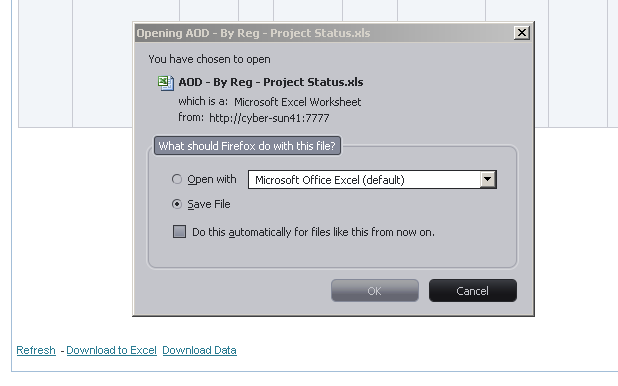
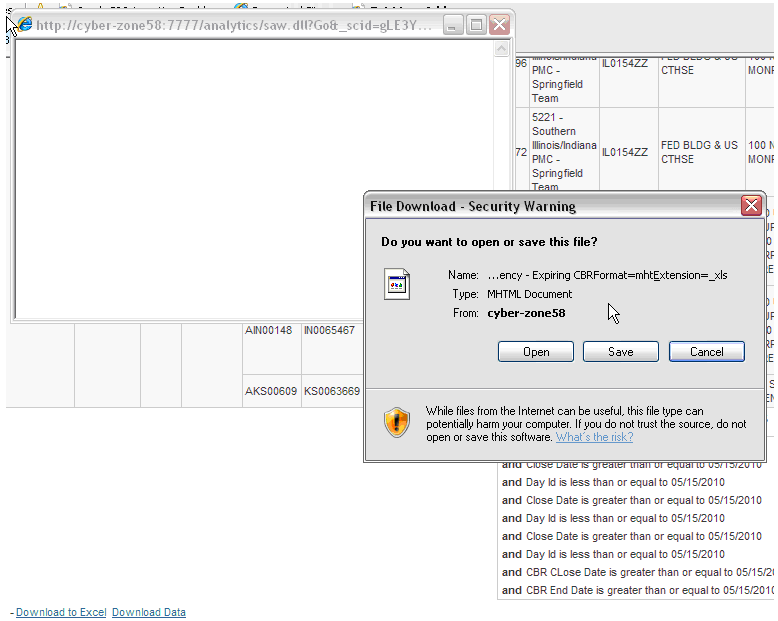
If you setup a download link for each report like below in IE6, it works fine when you download the data like below: OBIEE could transform mhtml data format to the desired the data format ( in this case it is an excel file).

However in IE7, without extra settings, you would encounter with a compatibility problem that stops the OBIEE from transforming the mhtml format to other formats. Then the issues would show like below:


Continue reading